20 Best WordPress Plugins For User Testing - Your Path To A User-Centric Website
You've spent hours building a beautiful WordPress site, but what happens when visitors arrive? Do they click where you want them to? Do they find the information they're looking for, or do they get frustrated and leave? The truth is, without a strategic approach to user testing, you're building a website based on assumptions rather than facts.
A user testing program is the difference between guessing and knowing. For a WordPress site owner, this doesn't have to be a complex, expensive process. By leveraging the right combination of plugins and tools, you can gather invaluable insights directly from your audience.
This article goes beyond the typical listicle to provide a strategic framework for user testing. These 20 best WordPress plugins for user testingwill help you identify problems, test solutions, and ultimately create a website that not only looks great but also performs exactly as you intend it to.
Key Takeaways
- A successful user testing strategy for WordPress involves a combination of tools to gather both quantitative data (what users are doing) and qualitative data (why users are doing it).
- The best approach is to use a combination of plugins for specific goals: first, identify the problem with behavior analytics (such as heatmaps); second, form a hypothesis and validate it with A/B testing; and third, ask users for direct feedback through surveys.
- While dedicated plugins are useful, many powerful user testing platforms integrate seamlessly with WordPress, often offering more robust features.
- Performance matters. Always consider the impact of a plugin on your site's speed and use tools that are well-coded and actively maintained.
- User testing is not a one-time event; it's a continuous process of learning, iterating, and optimizing based on real user behavior.
Survey & Feedback Plugins
UserFeedback - Surveys & Polls on Your Page
UserFeedback (from MonsterInsights) lets you create surveys right on your site that can pop up or be placed anywhere you want. It’s easy for beginners to use because it has drag-and-drop survey templates and built-in features to guide users.
You can ask one question at a time to get more responses, use multiple-choice questions, rating scales, or open text boxes, and choose exactly when and where the forms show up.
For example, you could show a quick survey after someone buys something or have a pop-up appear when a user is about to leave a pricing page. UserFeedback works with Google Analyticsand MonsterInsights, so all your survey answers go straight to your analytics dashboard.
There is a free version, and paid plans (starting around $49 per year) let you have unlimited surveys and better ways to target users. Many stores and blogs use this to get honest opinions directly on their pages.
WPForms - A Powerful Form Builder with Surveys

WPForms is a very popular drag-and-drop plugin for building all kinds of forms, from contact forms to feedback surveys. Its Surveys and Polls Addon (a premium feature) turns forms into complete feedback tools. Right out of the box, you get over 2,000 templates, including forms for a “Suggestion Box” or “Customer Review,” plus special features and protection against spam.
You can put a survey form on any page or in a pop-up window to ask for ratings or comments. WPForms also handles file uploads, payments, and newsletter sign-ups, making it a very useful tool for collecting all sorts of user information.
WPBeginner points out that WPForms is easy to use and has great reportingreporting, you can see all the form entries in your dashboard or download the results. A free "Lite" version is available, but you need the paid Pro plan (around $200 per year) to use the survey features.
Formidable Forms - Advanced Surveys & Data

Formidable Forms is another strong form builder that is great for complex surveys and showing data in useful ways. Like WPForms, it has a drag-and-drop interface for creating surveys with multiple pages, polls, and quizzes.
Its best features include a way to show different questions based on previous answers, multi-page forms with progress bars, and reports that update in real time. It can even show your survey results in charts right inside your dashboard, which is great for seeing user feedback clearly.
According to UserFeedback, Formidable is well-known for being flexible and saving time. The basic plugin is free, but you'll need the Business license (approximately $200 per year) for advanced survey features, such as charts and mathematical calculations. If you need complex forms (like calculators or quizzes that score answers) for your user testing, Formidable is a great choice.
Quiz and Survey Master - Feedback in a Quiz Style

How to Install Quiz And Survey Master | Complete Installation Process | Best WordPress Quiz Plugin
If you want to use fun quizzes or polls to get feedback, Quiz and Survey Master is a free plugin designed for that. It supports multiple-choice, true/false, and open-ended questions, and even lets users upload files.
While it's made for educational quizzes, it's also often used for user surveys. You can show questions one at a time or all at once, and there are templates for feedback quizzes. The paid version, which is approximately $150 per year, includes additional question types and reports.
Use it when fun quizzes or step-by-step surveys (like "What is your biggest problem?") fit your testing plan. People who use it like how flexible and easy it is to design.
Survey Maker - A Simple Survey Builder

Survey Maker is a free plugin made just for creating surveys with multiple pages and different question types. It lets you create as many surveys and questions as you want, and it shows the results in charts and reports.
Some of its features include limiting each user to one response, the ability to download data, and using a simple code to place the survey anywhere on your site. The design is clean and simple, so it’s easy to set up quick surveys, even on phones. For example, you could launch a 5-question survey to ask about how easy it is to use your site's navigation.
The paid version (starting at $59) adds more question types and logic that skips questions. This plugin is perfect if you want a simple survey tool without all the extra features of bigger form plugins. As WPBeginner notes, its goals and templates make setup fast.
Thrive Quiz Builder – Fun Quizzes & Polls

Thrive Quiz Builder (part of Thrive Themes) is a paid plugin (around $99 per year) that is great for making attractive, fun quizzes and personality tests. While it's not a free-form tool, it's often used to get information by turning surveys into quizzes. For example, you could ask visitors, "Which feature are you most excited about?" using a quiz.
Thrive's report dashboard then shows you how many users chose each answer and how many people completed the quiz. It also lets you A/B test different quiz designs. The big benefit is that it gets people to participate more, and quizzes can feel less formal than surveys.
On the other hand, there is no free version, and it's sold as part of the Thrive Suite. Use it when you want to make collecting feedback a fun game (for instance, on marketing sites where getting people involved is very important).
YOP Poll – Simple Polls
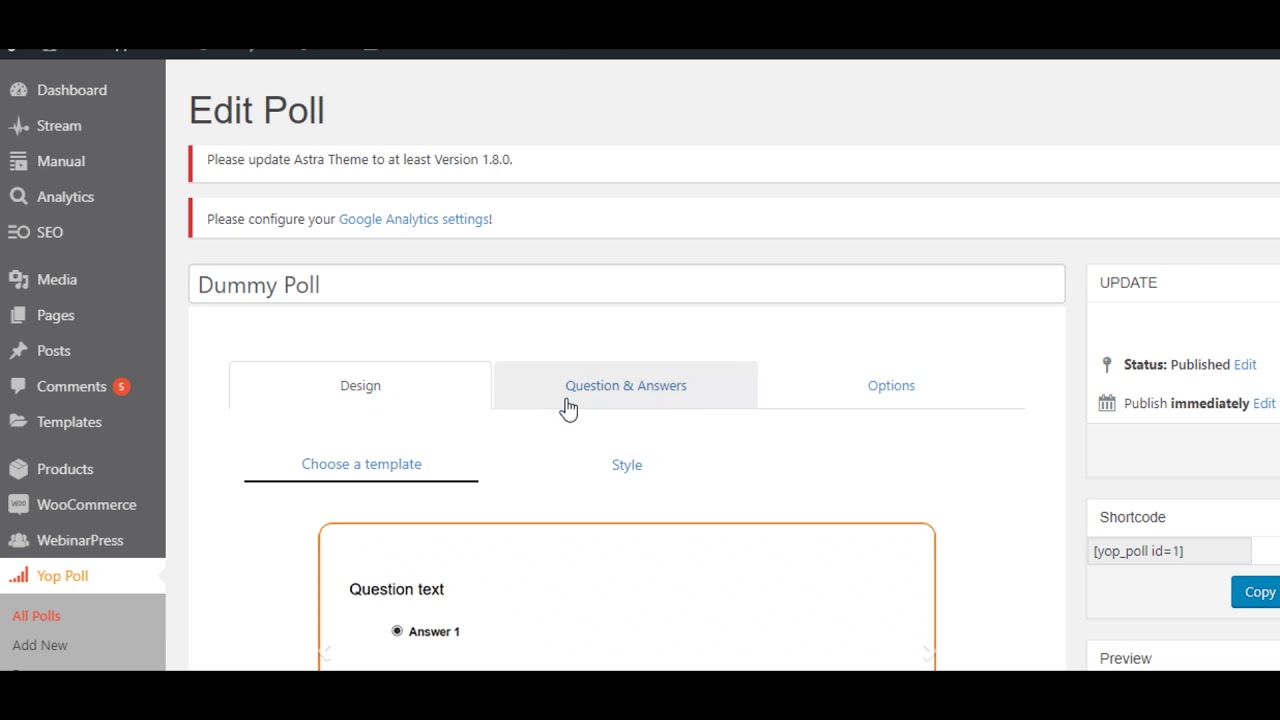
Yop Poll
For very simple polls, YOP Poll is a free plugin that adds basic user polls (yes/no, multiple choice) using a simple code. It won't give you as much detail as a survey, but it's great for quick questions ("Did you find what you were looking for?") and seeing results right away.
You can also find polling features in WPForms or other form plugins. However, if all you need is a quick, simple pop-up or a small box with one question, YOP Poll (or other free poll plugins like it) will do the job. Just remember that these don't have advanced features for targeting users or deep reports, so they are best for very basic feedback.
Related: Amazing Tools For Modern Web Development
User Behavior Analytics & Testing Plugins
Plugins for visual analysis and session recording let you watch how real people interact with your site. Heatmaps, click maps, and session replays show exactly what visitors do, revealing problems you might never hear about in surveys. For example, a heatmap might show that your main call-to-action button is being ignored, or a session recording might show where users get stuck on the checkout page. These tools turn user actions into data, helping you improve your site's design, layout, and content. Web development and usability testing are closely tied, and these plugins are essential for both.
Crazy Egg - Heatmaps & Recording
How to setup Crazy Egg for your website 🚀
Crazy Egg is a well-known tool for improving user experience with a WordPress plugin that simply adds its tracking code to your site. It then gives you heatmaps (maps of clicks, scrolling, and where people look) and recordings of user sessions on Crazy Egg’s platform.
According to WPExplorer, you install the free plugin and then sign in to the Crazy Egg service to see the results. Crazy Egg also includes A/B testing and confetti reports that show clicks by where people came from. The price starts at $24 per month after a free trial.
This is a great option if you want a complete, proven solution for analyzing user behavior. A useful tip: Crazy Egg can help you confirm if your design changes are working by showing if more people click on your new version.
Hotjar - All-in-One Behavior Analysis
Hotjar is another very popular service (used on over 900,000 sites) that offers heatmaps, recordings, conversion funnels, and on-site surveys/polls. The WordPress plugin simply installs Hotjar on your site. Hotjar's strength is that all its features work together: you can look at heatmaps of clicks and how far people scroll, watch recordings of user visits, and even put up pop-up surveys or feedback widgets to get user opinions.
The basic plan is free (for up to 35 daily sessions), which is perfect for small sites. For bigger sites, paid plans (starting around $39 per month) support more visitors and have more advanced features. In reality, many marketers use Hotjar to combine the "why" (from a survey) and the "how" (from a heatmap) of user actions, for example, asking "Why didn't you click here?" right after a user's session. Hotjar is often called a go-to tool for user experience because of its many uses.
Lucky Orange - Heatmaps, Chat & Recordings

Lucky Orange is an all-in-one tool for increasing conversions, similar to Hotjar. It's a WordPress plugin that adds the Lucky Orange code, giving you heatmaps, session recordings, polls, and even live chat. You'll see where users click, how far they scroll, and you can replay their entire visit as if you were watching a video.
It has special features like form analytics (to see where users quit filling out a form) and dynamic heatmaps. Lucky Orange also has a simple chat box so you can ask visitors for feedback in real time. Plans start as low as $10 per month, making it affordable for small sites.
WPExplorer notes that Lucky Orange combines many features to help you spend "more time connecting with people" instead of just looking at numbers. It's a solid choice if you want chat, feedback, and analytics all in one service.
Matomo Analytics - Analytics That Respects Privacy
Matomo is an open-source analytics platform (an alternative to Google Analytics) that offers heatmaps and session recording as extra paid features. The Matomo WordPress plugin lets you host Matomo on your server.
Without paying extra, you get standard analytics; for heatmaps and session recording, you need to install Matomo's on-premises (self-hosted) version with those add-ons. The benefit is that you own all your data and it stays private: everything remains on your server.
Matomo's heatmaps (for clicks and scrolling) look a lot like Google Analytics charts, and you can track as many pages as you want once the paid features are set up. This is great for sites that need to follow privacy rules like GDPR/CCPAor want complete control over their data. The free core plugin gives you basic reports on user flow; adding heatmaps costs extra, but it means you won’t have to pay monthly fees to a company.
Plerdy - Quick & Easy Heatmaps

Plerdy is another tool that offers heatmaps, sticky forms, conversion funnels, and pop-ups. Its WordPress plugin is free to install, and the basic plan is free for sites with low traffic. Plerdy's heatmaps include maps of "clicks" and "cursor movements," and it records data from forms.
A cool feature is that it can show you which parts of a page get the most attention. It's fast to set up, and you can create on-site feedback surveys or pop-ups that appear when a user is about to leave.
If you want a simpler or cheaper option than Hotjar for basic heatmap and funnel analysis, Plerdy is worth checking out. WPExplorer includes it in its list of top heatmap tools as being easy to install with a free WordPress plugin.
QA Analytics – GDPR-Compliant Analytics & Heatmaps
QA Analytics is a newer free plugin that promises to be a privacy-focused analytics tool with advanced features. According to its description, it collects data without using cookies and keeps everything on your server. It offers real-time traffic, funnel reports, plus built-in heatmaps and session replays.
In other words, it's like having Google Analytics and Hotjar in one plugin. For example, as shown in the plugin's screenshots, QA Analytics can show a heatmap for any page and replay sessions to watch clicks and scrolls. It also includes dashboards for SEO analysis.
This tool is perfect for developers or sites that care about privacy and want a self-contained solution. And most importantly, it's 100% free, making it one of the cheapest ways to get heatmaps on WordPress. The only trade-off is that it might use a bit more of your server's resources to process data, but it solves the problem of dealing with third-party privacy issues.
Crazy Egg, Hotjar, Lucky Orange, QA Analytics, and similar plugins all play a key role in understanding the user journey: they provide insights into real behavior. After you install one, you'll see exactly where users clicked or where they hesitated.
For example, a heatmap might show that 90% of users ignore your sidebar, a sign that you should move your main buttons. Or a session replay might show that users are always leaving the site at a broken link.
With these insights, you can make smarter improvements, then test again to see if they worked. As WPExplorer explains, heatmaps "show you how website users act" and make it easy to find problems and opportunities.
A/B Testing Plugins
Nelio A/B Testing - A/B Testing Inside WordPress
An Overview of Nelio A/B Testing
Nelio A/B Testing is a special plugin that brings A/B and multivariate testing right into WordPress. It lets you create different versions of your posts, pages, or headlines directly from your dashboard. You can test different themes, content blocks, or calls-to-action to see which version gets more conversions (like clicks or form submissions).
Uniquely, Nelio includes built-in heatmaps and click maps for your tests; you don't need another service to see clicks on each version. All the data is stored in the cloud. There’s a free plan for sites with low traffic, and paid plans (starting around $29 per month) for bigger sites.
Nelio is especially convenient if your testing is all about changing content on WordPress. It’s important to mention because it’s one of the only A/B testing tools that is truly a WordPress plugin; other solutions like Google Optimize or VWO need you to use external scripts.
(To be clear: many marketers use tools like Optimizely or VWO for A/B testing, but these are external software services that are connected to your site with scripts. WordPress plugins for these are usually just script installers. Nelio is the one true "plugin" for split testing.)
Visual Feedback & Bug Reporting Plugins
Sometimes you need direct visual feedback: a way for users, clients, or quality testers to point to things on your site and report problems. The following plugins add feedback buttons or tools to your site so users can highlight issues without having to leave the page.
Marker.io – Visual Feedback with Notes

Marker io Product tour
Marker.io is a popular tool for getting feedback for developer teams. It's a WordPress plugin that puts a "Report Issue" button on the front of your site. Users or testers can click it, take a screenshot of the page, and draw arrows or write notes directly on the image.
The report (which includes information about the user's browser and the page URL) is then sent to your project management tool or email. In practice, Marker.io is great for getting quick bug reports or design feedback from people who aren't technical; they don't need to log in. It's excellent at getting clear, visual feedback in one simple step.
Marker's blog says this tool "lives as a small widget" for easy feedback. The plugin is free to install; Marker.io itself is a paid service (plans start at $39 per month). Use it when you want clients or team members to provide feedback with notes on live pages or test sites without any confusion.
Appzi – Built-in Feedback Surveys
Appzi is a simple feedback plugin that adds a small widget (usually a button or a smiley face) to your site. Clicking it opens a survey you can customize or a set of smiley-face ratings. According to Marker, you can put Appzi on your site with a simple code and even set it to appear only at certain times (for example, after a user scrolls down or is about to leave the page).
It works with Slack, Trello, and other apps, so feedback can go directly to your channels. The main use for it is getting continuous feedback from customers: "How was your experience?" or "How can we get better?".
Because it's not in the way, you can collect feedback from random visitors as well as people who are logged in. Pricing starts at $29 per month. If you just need a constant way to get feedback (instead of specific surveys), Appzi’s simple widget works well.
Feedbackify – Simple Feedback Forms
Feedbackify is a simpler choice: a plugin that adds a feedback form button to your site. Visitors click it, answer a multiple-choice question, and submit their response. It collects some extra details (like browser, operating system, and location) with each report.
Marker notes that Feedbackify creates many WordPress forms and even captures technical details. It's very basic: you set the questions and colors. The good things about it are that it's low-effort and has basic reports; the bad things (as one reviewer said) are that the design looks old.
Pricing starts at around $19 per month for more reports. Use Feedbackify if you just want a quick feedback pop-up, but note that it hasn't had major updates in years. For more modern options, Marker suggests Jotform or JustFeedback instead.
UseResponse – All-in-One Feedback & Support
UseResponse is more than just a plugin; it's a full feedback and support platform that has a WordPress plugin to connect your site. With it, you can collect feedback, feature requests, bug reports, and quality assurance in one place. It even includes a ticket system and a knowledge base.
As Marker describes, UseResponse lets users submit ideas or vote on features right from your site. It's for companies that need both user feedback and support in one system. The downside is the price: it's a big business service (around $1,490 per month).
But if you have a product team that wants forum-style feedback and voting (like a public roadmap) plus on-site feedback collection, UseResponse can handle it. Note: this is too much for small sites, but we list it to show the full range of tools (from small widgets to big platforms).
Engagement & Social Plugins
Thrive Comments – User Feedback That's a Game
Thrive Comments is a unique plugin that turns the WordPress comment section into a tool for getting people involved. It adds buttons to vote comments up or down, social sharing links, and badges to encourage people to participate. While it’s not a survey plugin, it gets user feelings from natural conversations.
For example, comments that get a lot of upvotes show what readers liked or didn't like. Thrive Comments also has reports on how many comments are made and which threads are popular. According to UserFeedback, adding features like this can greatly increase commenting activity and "get more feedback and engagement."
If your site already has a lot of comments (like a blog or a membership site), Thrive Comments can turn that into a feedback channel, especially since active users often drop hints about problems or ideas.
It's part of the Thrive Suite (around $250 per year for all plugins), and a nice bonus is that it's good for SEO because it keeps the content on your site. In short, use Thrive Comments if you want to get feedback from your existing community instead of using formal surveys.
HubSpot – CRM + Feedback Tools

The free HubSpot plugin brings HubSpot's entire marketing and customer relationship management (CRM)system into WordPress. Among many features, it includes forms, live chat, and a customer feedback survey tool. You can create NPS, CSAT, or custom surveys and either put them on pages or send them through email from HubSpot.
The big benefit is that everything is connected: all the responses go into HubSpot's contact database, letting you group people and set up automatic follow-ups. For example, you could automatically label a contact as a "detractor" if they give a low NPS score.
WPBeginner notes that HubSpot provides a "complete set of tools", including feedback, which is a great value for small teams. The plugin itself is free; the Customer Feedback Survey feature comes with HubSpot's paid Service Hub ($100 per month per user). Even if you don't pay, you still get forms, basic email, and chat.
See Also: Boost Your Rankings With These Best WordPress SEO Plugins
FAQs about WordPress Plugins for User Testing
How do I start a user testing program on my WordPress site?
Start with a goal. First, identify a problem you want to solve, such as a low conversion rate on a specific page. Next, use a heatmap plugin (like Hotjar) to observe user behavior on that page. Based on your observations, form a hypothesis (e.g., "Changing the button color to red will increase clicks"). Then, use an A/B testing plugin (like Nelio A/B Testing) to run a test. Finally, use a survey plugin (like WPForms) to ask users why they chose to click or not.
Do I need to install all these plugins?
The key is to be strategic. Installing too many plugins can slow down your site and create conflicts. Choose one plugin from each category (Observe, Validate, Ask) to create a comprehensive but lightweight user testing stack. You can also start with a single, all-in-one solution like Hotjar or Matomo that combines multiple features.
Are there any free user testing plugins for WordPress?
Yes, many excellent options have free tiers or are open-source. For example, Google Optimize is a powerful free tool for A/B testing, and MonsterInsights has a free version for basic analytics. Forminator and Gravity Forms also have free alternatives like WPForms Lite.
How do these plugins affect my website's performance?
Some user testing plugins, especially those that rely on scripts for heatmaps and session recordings, can have a slight impact on performance. It's crucial to choose well-coded plugins from reputable developers. If possible, use external services with lightweight scripts and consider enabling them only when you are actively running a test.
What is the difference between qualitative and quantitative user testing?
Quantitative data (like what you get from a heatmap or analytics) tells you whatusers are doing. For example, 75% of users scrolled past your CTA. Qualitative data (from surveys or session recordings) tells you whythey are doing it. For example, users said the CTA was visually unappealing or that they didn't have enough information to make a decision. A good user testing strategy uses both.
Should I use a dedicated WordPress plugin or an external service?
This depends on your needs. Dedicated plugins can be more deeply integrated and may feel more familiar. However, external services often offer more robust features and can be lighter on your site's performance. Many top services like Hotjar and Crazy Egg offer easy WordPress integration without needing a separate, heavy plugin.
Can I use these plugins for mobile user testing?
Yes, all of the plugins and services mentioned are compatible with mobile sites and responsive designs. Heatmaps will show you mobile-specific click and scroll data, and session recordings will let you see how users interact with your site on a phone or tablet.
How can I get started with user testing if I have a small budget?
Start with free tools. Use a combination of a free analytics plugin (like MonsterInsights), a lightweight survey form plugin (like WPForms Lite), and a free plan on an external tool like Hotjar to get your feet wet. This will give you a solid foundation without any financial commitment.
Final Thoughts
Good user testing on WordPress isn’t about guessing what visitors want; it's about listening and watching. The 20 plugins above give you the tools to do just that, from basic free forms to complex business-level feedback systems.
Use them carefully in your work: use surveys and polls to ask the right questions, and use heatmaps and session tools to watch what users do. Together, they create a full picture of user behavior. Even small websites can benefit.
A single, well-placed poll or heatmap can reveal problems that you can’t see with standard analytics. Start with free or trial options (many of these plugins offer free plans) and focus on the information you need most, whether that’s getting more sign-ups, reducing errors, or understanding your audience better.
With these plugin suggestions and best practices, you can go beyond simply looking at analytics and build a WordPress site that truly focuses on its users. Happy testing!
You Might Like: How To Start A Remote Career From Home